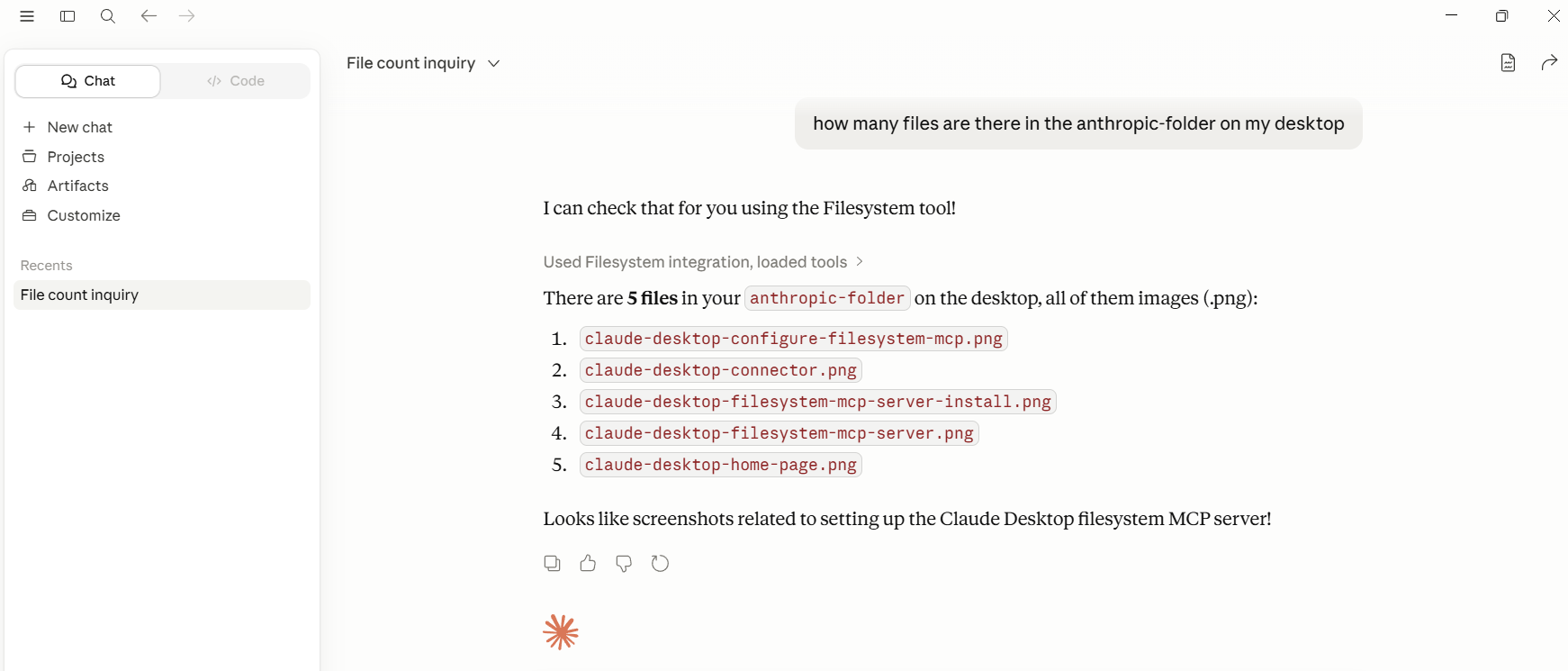
Claude Desktop And Real MCP Servers - An Introduction
The Model Context Protocol, commonly referred to as MCP, becomes truly interesting when you move beyond theory and begin using it in real applications. Understanding the architecture and lifecycle of MCP is important because those concepts explain how clients and servers communicate, how tools are exposed, and how context flows through the system. However, the real learning starts when you actually connect an AI host to MCP servers and observe how the communication behaves in practice.
In this tutorial, we will move into the practical side of MCP implementation. Instead of building everything from scratch immediately, we will first use existing tools so that the overall workflow becomes easier to understand. Once the core ideas become clear, creating custom clients and servers later becomes significantly simpler.
This tutorial focuses on using Claude Desktop as the MCP client and connecting it with multiple MCP servers, both local and remote. Along the way, we will also understand connectors, JSON configuration-based integrations, authentication, permissions, and why MCP is designed to remain an open ecosystem.
Understanding the Learning Strategy for MCP
A good way to learn MCP is to divide the journey into three stages.
The first stage is simply experiencing MCP using ready-made clients and ready-made servers. This allows you to focus entirely on the communication model instead of getting distracted by implementation details. You can observe how tools are discovered, how permissions are requested, and how AI systems interact with external systems.
The second stage involves creating your own MCP server. At this point, you already understand how an MCP host behaves, so building a custom server becomes much easier because you already know what the client expects.
The third stage is building both the MCP client and server yourself. Once you reach this point, you are no longer just consuming the ecosystem—you are extending it.
This tutorial focuses entirely on the first stage. We will use existing MCP servers and connect them with Claude Desktop to understand how the entire ecosystem behaves in practice.
Local MCP Servers vs Remote MCP Servers
Before integrating anything, it is important to understand that MCP servers can exist in two different forms.
A local MCP server runs directly on your machine. Its files, processes, and dependencies are installed locally, and communication typically happens through local processes or local transports. These servers often interact with your filesystem, development tools, or locally installed software.
A remote MCP server, on the other hand, exists somewhere on the internet. Your AI host communicates with it remotely, usually through network-based communication. These servers are useful when the functionality depends on cloud services or online APIs.
Two Different Ways to Connect MCP Servers
One of the most important concepts in modern MCP tooling is that servers can be connected in two completely different ways.
The first method is the traditional JSON configuration approach. In this model, the AI host maintains a configuration file, usually in JSON format, where MCP server details are manually added. This approach gives developers complete flexibility because they can connect any compatible MCP server immediately.
The second method uses connectors. Connectors are a newer and more user-friendly mechanism that simplifies integration significantly.
Understanding the difference between these two approaches is extremely important because modern MCP ecosystems heavily rely on both.
What Are MCP Connectors?
A connector is essentially a built-in integration layer that automatically connects an AI host to an MCP server without requiring manual configuration.
Instead of editing JSON files, copying server configurations, or manually handling authentication, the user simply clicks a button and the integration becomes available.
This idea exists because most users of AI applications are not deeply technical users. They do not want to edit configuration files or troubleshoot runtime issues. They simply want to connect applications like Google Drive, Slack, Notion, or GitHub and start using them immediately.
Connectors hide all technical complexity behind the scenes.
Authentication flows, API key handling, permissions, session management, and configuration generation are all handled automatically by the platform providing the connector. From the user’s perspective, the process feels almost identical to installing an application from an app store.
Why Connectors Are Useful
Connectors provide several major advantages.
The first advantage is simplicity. A non-technical user can connect tools without understanding MCP internals or configuration syntax.
The second advantage is safety. Since the connector code is usually written and maintained by the platform provider, security practices are generally more standardized and reliable.
The third advantage is consistency. Manual configuration sometimes fails because of incorrect paths, malformed JSON, dependency issues, or authentication mistakes. Connectors reduce these inconsistencies because the setup process becomes standardized.
You can think of connectors as an ecosystem layer built on top of MCP that makes integrations feel consumer-friendly while still using MCP underneath.
Why MCP Cannot Depend Entirely on Connectors
At first glance, connectors seem perfect. Naturally, this raises an important question:
Why not force every MCP server to use connectors?
The answer lies in scalability and openness.
Creating connectors is expensive and operationally heavy. Every connector requires authentication handling, OAuth flows, security updates, maintenance, stability checks, and long-term support. If thousands of MCP servers exist and new ones appear every day, no single company can realistically maintain connectors for all of them.
The second and more important reason is that MCP is designed as an open standard.
An open standard means anyone should be able to build an MCP server and immediately connect it to compatible clients. If connector approval became mandatory, then server creators would need approval from platform owners before their servers could be used. That would slowly transform MCP from an open ecosystem into a centralized ecosystem.
Because of this, MCP intentionally supports both approaches:
- Connectors for common, widely-used services
- Manual JSON configuration for custom or experimental servers
This balance is one of the reasons MCP remains flexible and developer-friendly.
Integrating the File System MCP Server
The File System MCP Server is one of the easiest and most practical MCP servers to experiment with because it demonstrates how AI systems can safely interact with local files.
This integration is available through a connector, so setup is relatively simple.
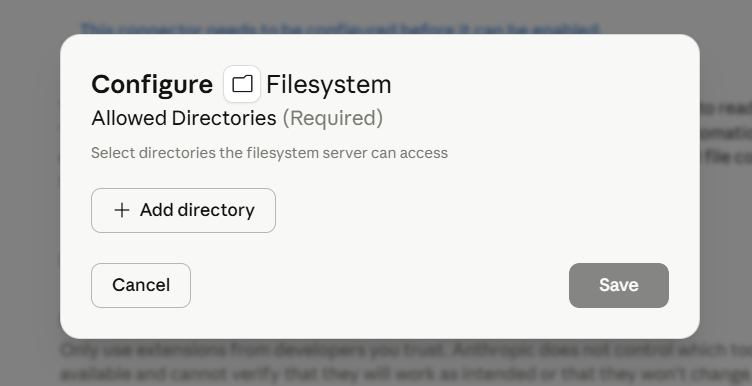
After installing the connector, you must specify which directories the server is allowed to access. This is an extremely important security feature because unrestricted filesystem access would be dangerous.
For example, you might allow access only to:
- Desktop
- Downloads
- A specific coding project directory
Once configured and enabled, Claude Desktop must usually be restarted so the newly connected MCP server becomes active.
Reading Files Through MCP
Once connected, the File System MCP Server exposes tools to Claude Desktop.
For example, you can ask:
“Are there any PDF files on my desktop?”
At that point, the AI host requests permission before accessing the tool. This permission model is very important because MCP hosts should never silently access sensitive systems without user approval.
After permission is granted, the server scans the directory and returns the results.
Steps to install and use FileSystem MCP serverInfo
Install Claude desktop
Once you install Claude desktop, following is the home page.
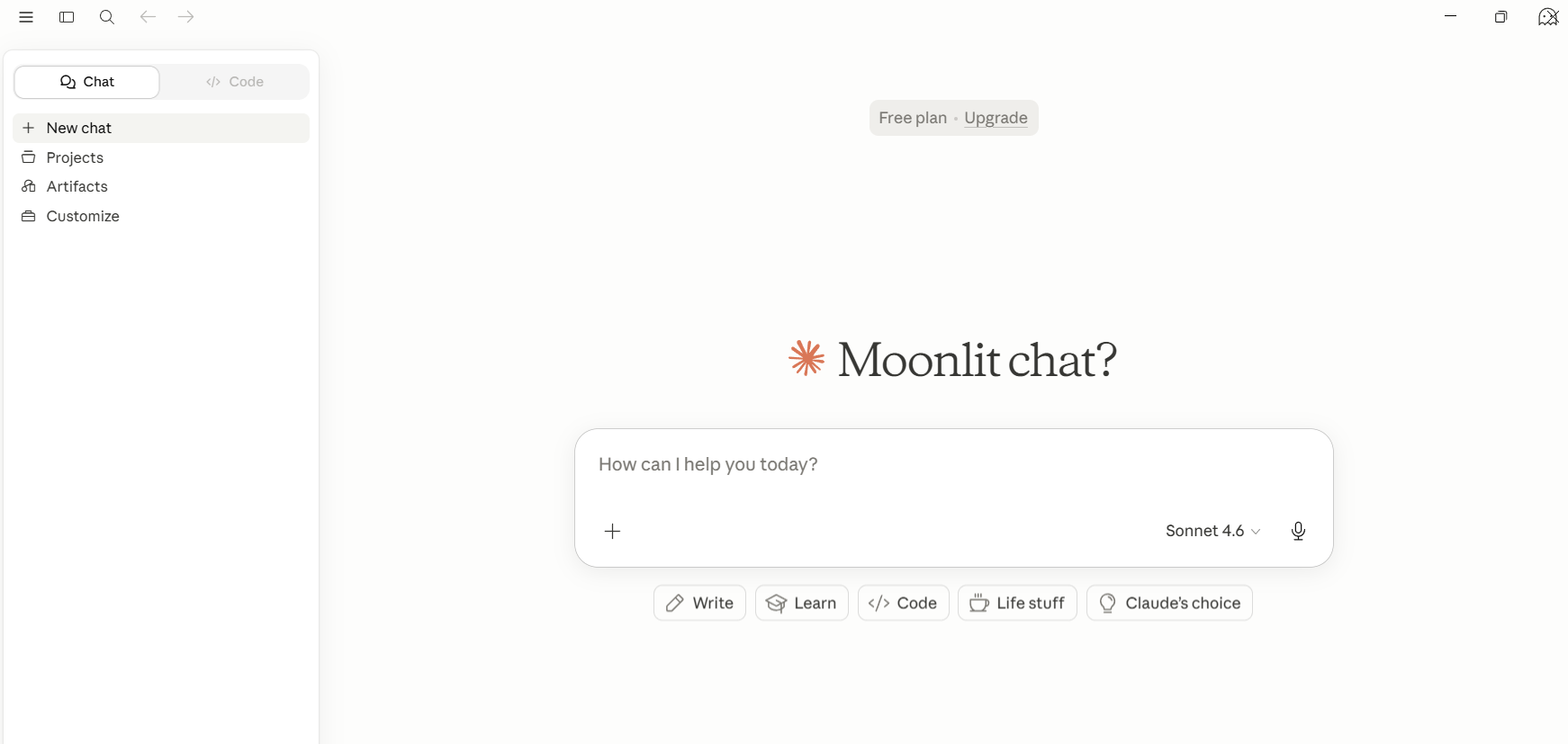
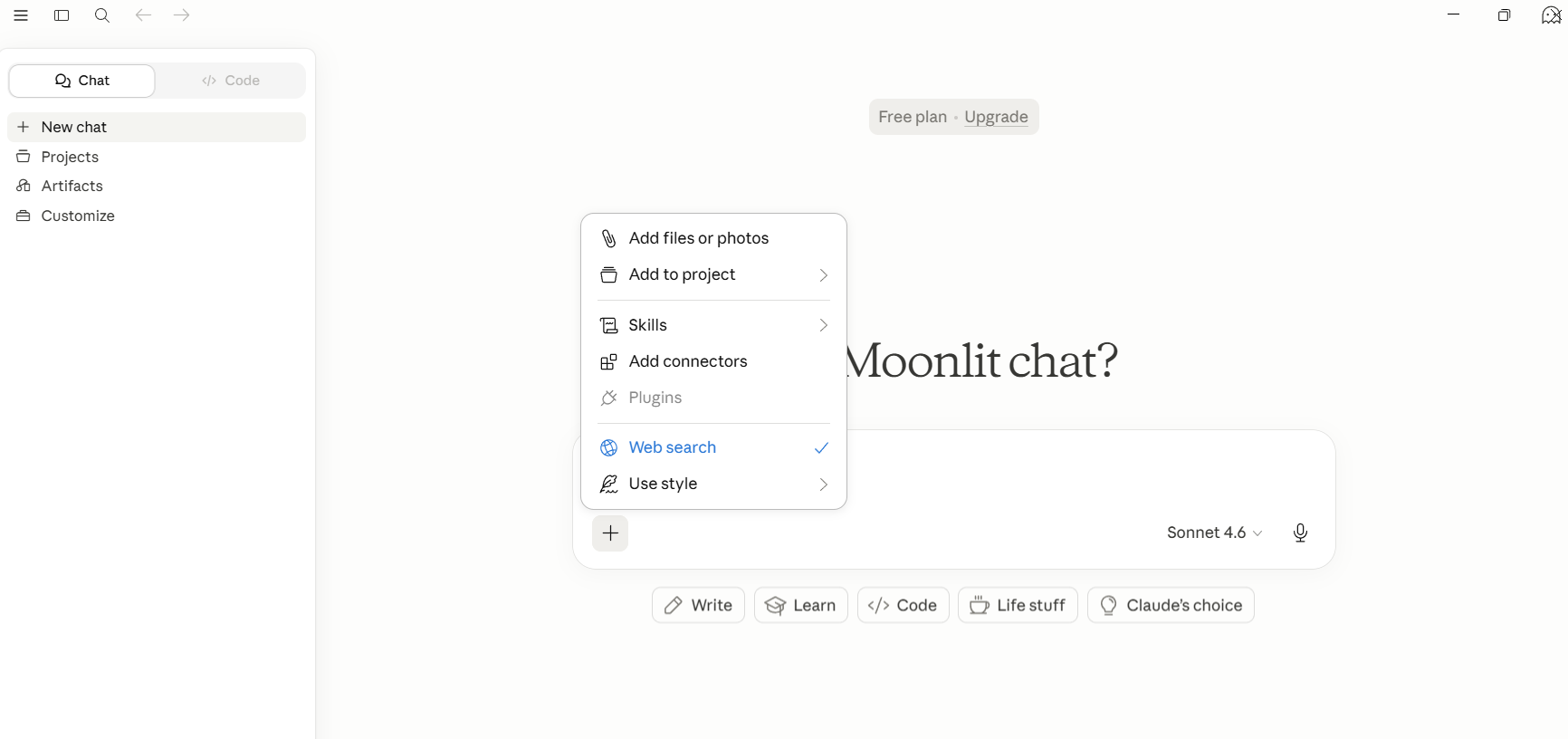
Add Connector
Next step is to search for filesystem MCP connector.
Search of FileSystem MCP connector
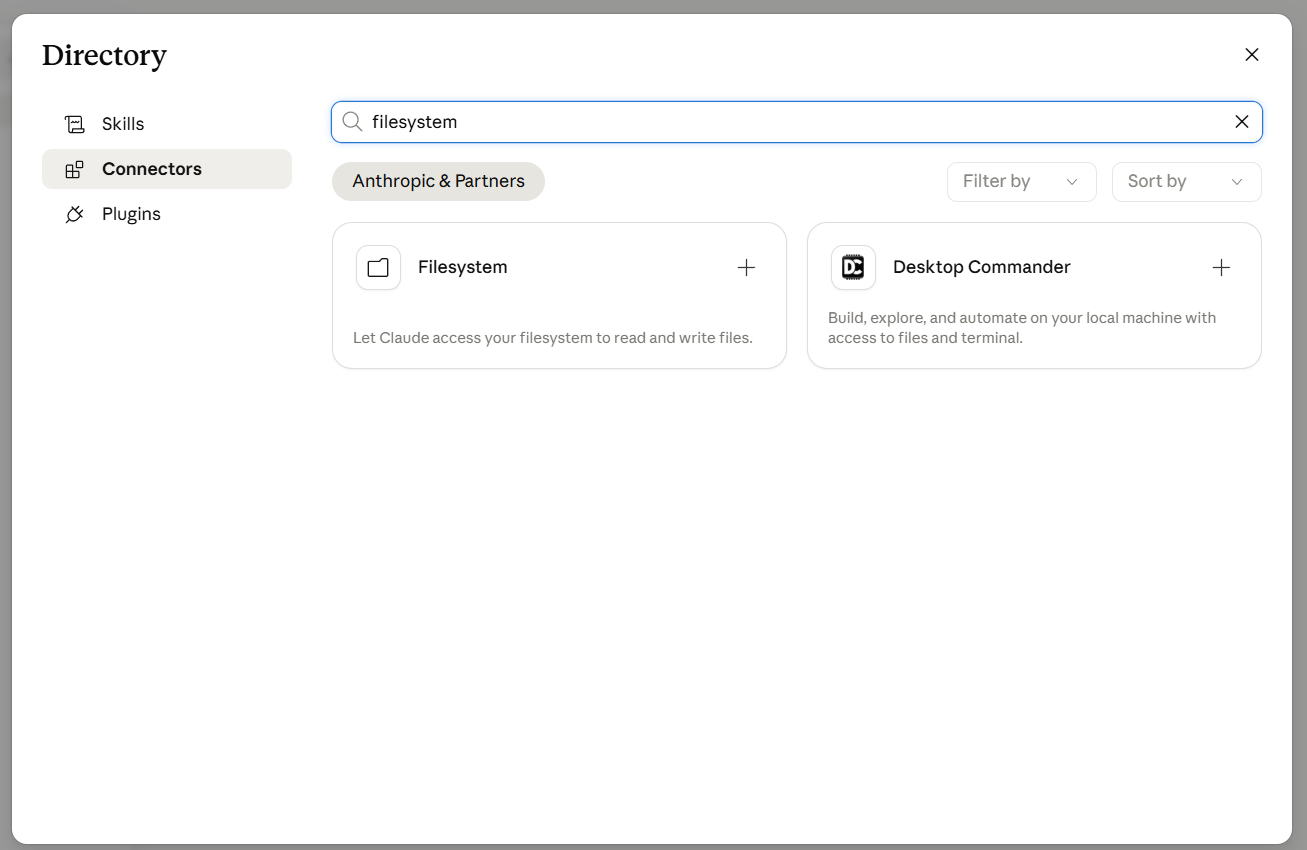
Install Filesystem MCP
Now, install the Filesystem connector
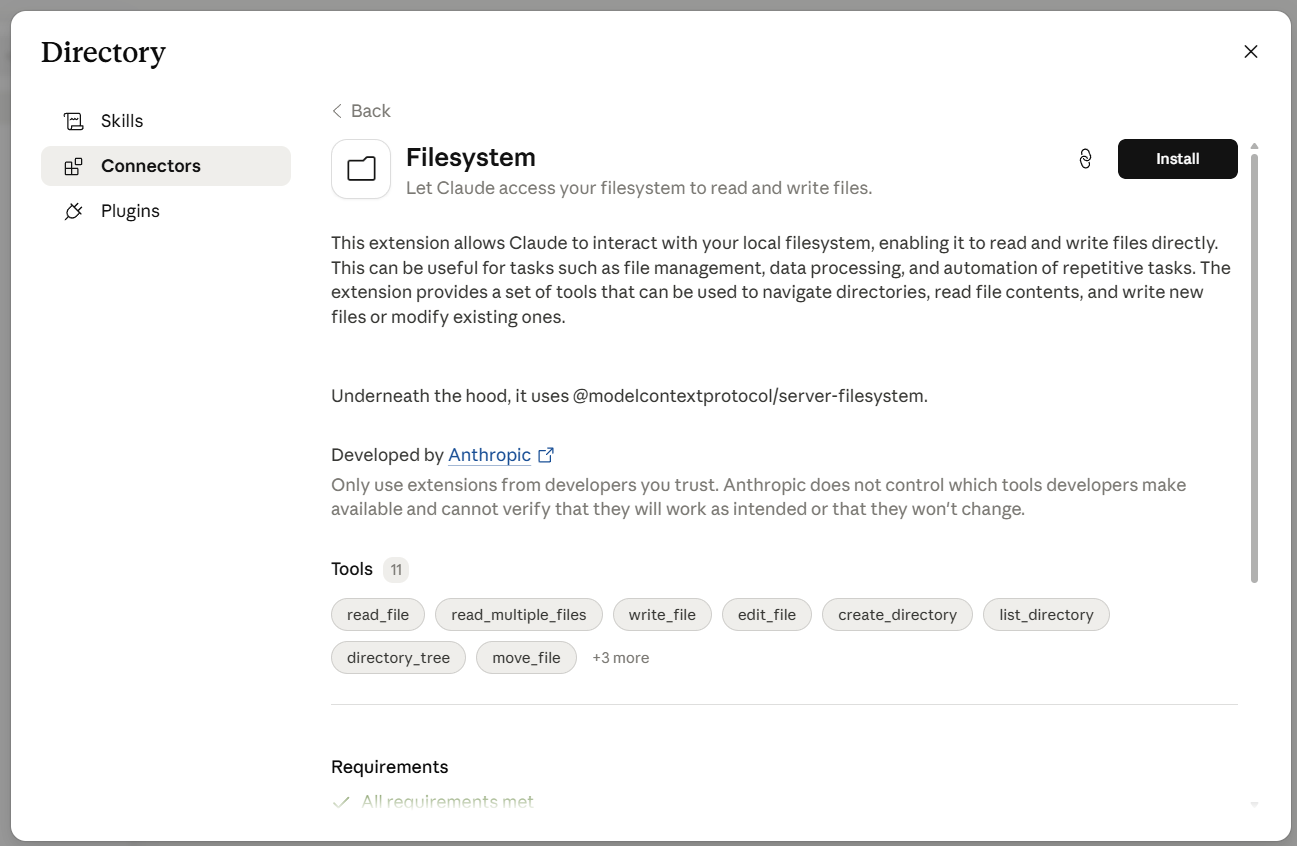
Configure Filesystem MCP connector
Claude Desktop Filesystem example